
Pages and Menus
Writing the pages that are not products, building one from sections, building menus, and the pages a shop needs before it opens.
Settings, Appearance, Pages holds everything on your shop that is not a product.
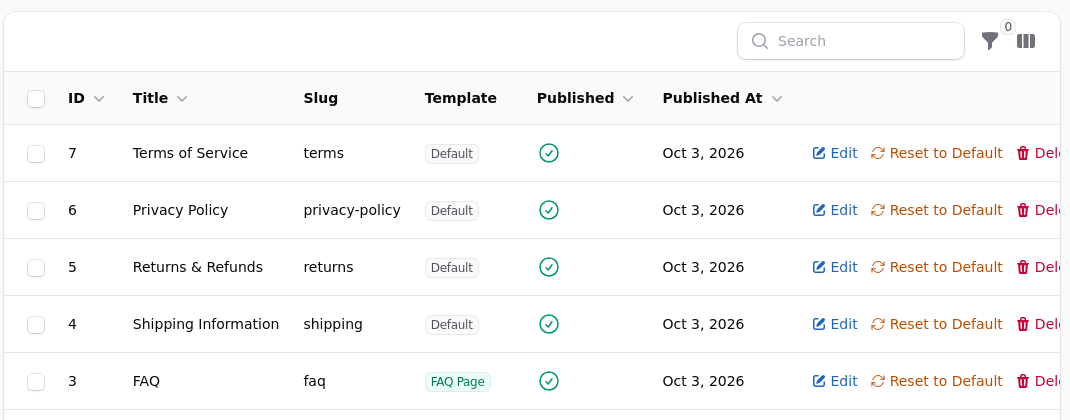
What a Page Holds
A title, which appears as the heading and in the browser tab. A slug, which is the web address. A body, written in the same editor as a product description, with an HTML view when you need it. SEO fields for the title and description a search engine shows. A status, active or not.
A page may also carry a layout, built on the Page Builder tab, covered below.
Settle the address before you publish
Changing a slug after publication breaks every link anybody has saved, shared, printed or linked to from elsewhere. Pick a short one at the start and leave it.
Menus
Settings, Appearance, Menus. A menu is a list of links, and your theme decides where each menu appears: the main navigation, the footer, a secondary row.
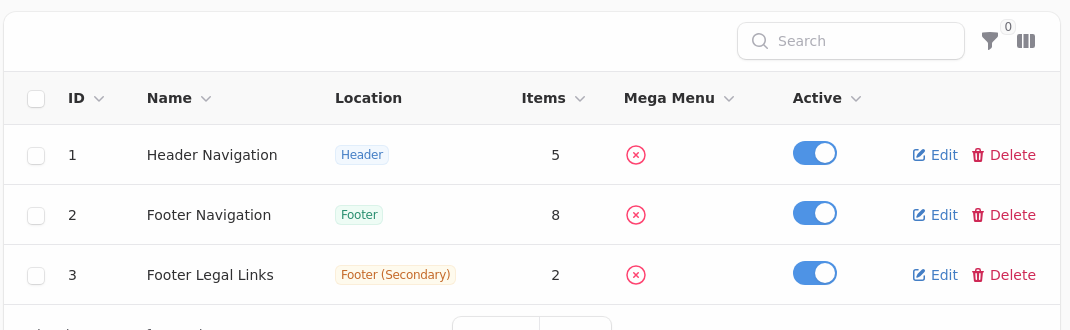
A link can point at a page, a category, a product, or any address at all including an external one. Each has a label, which is what the shopper reads and need not match the title of the thing it points at.
Drag to reorder. Nest one link under another to make a dropdown.
The order you built in is rarely the order to read in
Put the thing most people came for first. A menu left in creation order usually buries the one that matters, and the shop feels disorganised without anybody being able to say why.
A link can be made inactive, which removes it from the menu without deleting it. That is how a seasonal section comes and goes.
The Pages Worth Having Before You Open
Contact, with a real way to reach you. Delivery, saying what it costs and how long it takes. Returns, saying what happens if something is wrong. About, saying who you are.
Shoppers look for the first three before a first order, and a shop without them reads as one that might not answer the phone.
If you sell to the trade, a wholesale page explaining how to apply saves you answering the same email repeatedly.
Forms
Settings, Appearance, Forms builds a form that can be dropped onto a page: a contact form, a trade application, a stock enquiry. Submissions arrive under Customers, Form Submissions, and can email you when one comes in.
That is better than printing an email address on a page, which gets scraped.
Building a Page From Sections
Writing a body is one way to make a page. The other is the Page Builder tab, where you build the page from sections your theme provides: add them, drag them into order, fill in each one's settings. You never touch markup, so there is nothing there you can break.
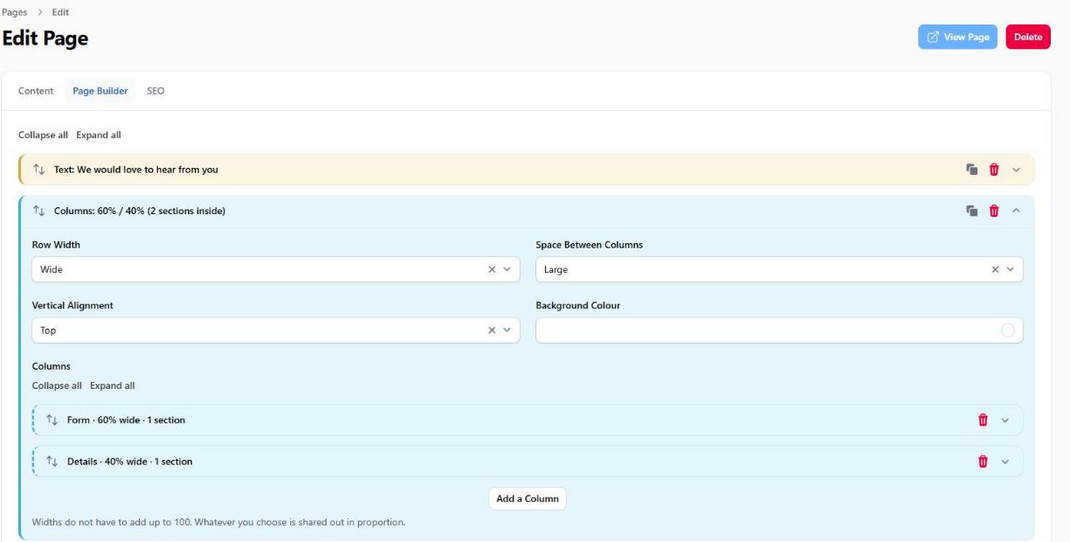
Whether this is available depends on your theme. A theme that supports it offers a list of sections; one that does not shows nothing on the Page Builder tab, and your pages use the layouts its designer wrote. Both are normal.
On the default theme the sections are:
| Section | What it does |
|---|---|
| Columns | Sections side by side, each column with its own width per screen size |
| Text | A heading and some words, independent of the body |
| Image With Text | A picture beside words, on either side, at whatever share of the width suits it |
| Highlights | A row of short points, each with an optional icon. Two to four across, and they can be numbered as steps |
| Table | Up to four columns, with headings you write and rows you add. Good for a shipping or a size chart |
| Questions and Answers | Questions that open when clicked. Add, reword and reorder them in a list |
| Call To Action | A band with a line or two and up to two buttons |
| Contact Details | Your email, phone, address and hours, from Store Details |
| Form | Any of your forms, placed where you want it |
| Gift Card Form | The gift card purchase form, under a heading you write |
| Custom HTML | Your own markup, kept inside one block |
Every section carries the same four controls, whatever it is: a Width, a Background, spacing above and below, and an Alignment for where it sits when it is not full width. Width governs how wide the words run as well as the band, which is the one that catches people out. They are covered in Themes.
A page is either written or built, never both
Add a section and the page is built from sections from then on. The Content tab switches off and everything comes from the Page Builder tab, so use a Text section for words.
Nothing is lost. What you wrote is kept, and removing every section brings it back exactly as it was.
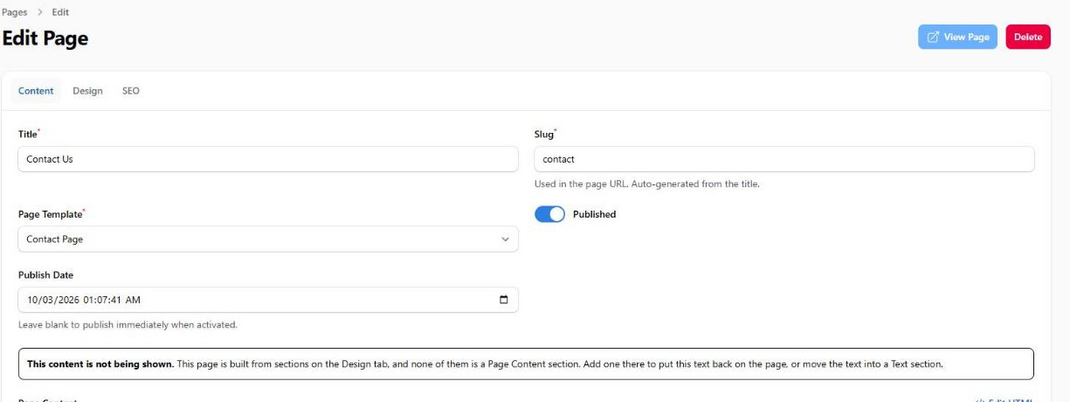
Columns is the one worth learning. Add it, add a column for each side, and put sections inside each. Every column has a width for a phone, a tablet and a desktop, so a form at 60% beside your address at 40% can stack into one column on a phone. Widths need not add up to 100: they are shared out in proportion, and a column set to Full width takes a row to itself.
Leave the Page Builder tab empty and nothing changes: the page renders the way it always has.
Putting a Form in the Middle of Your Text
You do not need sections for this. Type a token where the form should appear, using the form's slug:
{form, contact}
It works anywhere the editor is used, including a product or category description, and the Content tab lists the tokens for the forms you have. On the contact page the theme stops drawing its own copy of the form when it sees you have placed one yourself, so you never end up with two.
Backing Pages Up
Pages, Backup Pages takes a snapshot of every page you have, named for the moment you took it. Restore Backup puts one back, overwriting the pages it holds and leaving anything else alone.
A backup keeps both kinds of page: the words on the Content tab and the sections on the Page Builder tab. It is worth taking one before a big edit, before importing theme defaults, and before switching theme.
A reset takes one for you automatically, so a Reset to Theme Defaults you regret is recoverable from this screen.
Hiding a Page Without Losing It
Make it inactive. It comes out of the menus and stops being reachable, and nothing is lost.
That is better than deleting, which also loses the address, so anybody holding a link gets nothing instead of being redirected. If you do delete a page people may have linked to, add a redirect under Settings so the old address still lands somewhere sensible.
The Homepage
The homepage is not a page on this screen. It is assembled from blocks under Settings, Appearance, Homepage Builder, and has a guide of its own: Homepage Builder.
Redirects
Settings, Redirects sends an old address to a new one.
Use it whenever you delete a page or change a slug, and especially when moving from an old shop, where every link anybody ever shared points at an address that no longer exists. A redirect costs nothing and turns a dead end into an arrival.
SEO Fields
Every page, category and product carries a title and description for search engines, and leaving them blank is usually fine: the shop falls back to the name and the first part of the content.
Fill them in deliberately for the handful of pages that matter: the homepage, your main categories, and anything you are actively trying to be found for.
Canonical URL is for a page that also exists at another address, and it tells search engines which one counts. A path such as /gift-cards is as good as a full address here, and better for a shop reachable on more than one domain. Leave it blank and the page's own address is used.
What to Check After Editing
Open the page on the shop rather than trusting the editor. Check it on a mobile device, where a wide table or a large pasted image breaks the layout in a way it does not on a desktop.
If you pasted from a word processor, look for stray formatting. The editor keeps more than you expect, and pasted text often arrives with its own fonts and colours attached.