
Options and Variants
Which of the two to use, every field on a variant, and the mistakes that are painful to undo.
There are two ways to offer a shopper a choice, and they are not interchangeable. Picking the wrong one is awkward to undo once orders exist.
Which One You Need
Ask one question: would you ever want to know how many of that particular version you have left?
If yes, it is a variant. A shirt in small, medium and large is three different things sitting in three different places on a shelf. Each needs its own count, its own code, and can have its own price, weight and picture.
If no, it is an option. A DVD sold at one price for personal use and another for institutional use is one physical thing with two prices. There is no separate stock to keep, and making it a variant would mean maintaining two counts of a thing you only have one of.
| Variant | Option | |
|---|---|---|
| Separate stock | Yes | No |
| Own SKU | Yes | No |
| Own price | Yes | Adds to or subtracts from the product's price |
| Own weight | Yes | Adds to or subtracts from the product's weight |
| Own image | Yes | No |
| Can be hidden individually | Yes | No |
| Set up under | Options / Variants tab | Custom Input Fields |
Setting Up Variants
Set the product's type to Variable on the General tab. An Options / Variants tab appears.
1. Say Which Options This Product Has
On that tab, pick the attributes it varies by: Size, Colour, Format. Use the plus to create one that does not exist yet. An attribute has a name, a slug and a type:
- Select is a dropdown. The usual choice.
- Colour shows swatches rather than words.
- Text is a free typed value.
An attribute is shared across the whole shop, so create Size once and use it on everything. Do not create "Shirt Size" and "Hat Size" unless they genuinely have different values.
2. Add the Editions
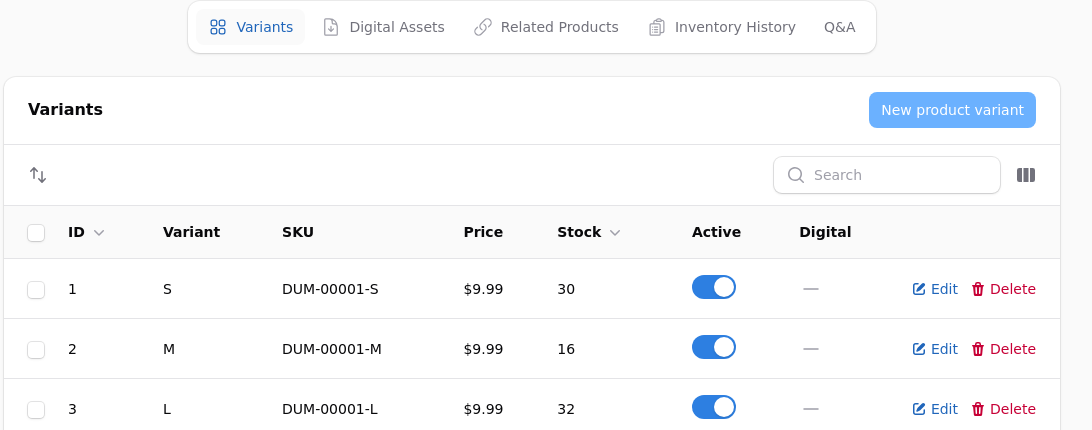
Below the form, the Variants panel is where each combination lives. Add one per edition you actually sell. You do not have to create every mathematical combination: if you stock a red small and a blue large and nothing else, create two.
Every Field on a Variant
Attribute values are the choices this edition represents, one per attribute: Size = Medium, Colour = Blue. This is what the shopper picks to arrive at this variant.
SKU must be unique across the whole shop, not merely within the product. This is the code your warehouse scans and your accounts match on.
An edition that shares the product's own code is normal
The plain paperback of a book has the same ISBN as the book. That is correct and it is what the trade expects. A variant SKU only has to be unique among variants, so it may match the product's own.
Barcode is the scannable number, often the same as the SKU.
Variant image picks which of the product's images is shown when this edition is selected. It does not upload a new one: add the picture under Media first, then point at it here.
Price is what this edition sells for. Leave it blank and it inherits the product's price, which is right when only the size changes and not the cost.
Compare at price shows a struck-through original for this edition only.
Cost price is what this edition cost you, for margin reporting. Never shown to a shopper.
Weight is this edition's own weight. A hardback and a paperback do not weigh the same, and shipping is quoted from this number.
Track inventory off gives this edition unlimited stock. Right for a download sitting alongside printed editions, wrong for anything physical.
Stock quantity is how many of this edition you have. This is the number that stops it selling.
Allow backorders lets this edition keep selling past zero while its siblings stop.
Active off hides this edition from the shop and stops it being added to a basket. The product page stays up and its other editions keep selling. This is how you retire one format without taking the title down.
Tax exempt charges no tax on this edition. The usual case is an ebook sitting beside printed editions in a jurisdiction that treats them differently.
Sort order is the order the editions appear in. Lower first. Set it deliberately, or shoppers meet your formats in whatever order you happened to create them.
Setting Up Options
Options live under Catalog, Custom Fields, and are attached to a product on its Custom Input Fields tab. One field can be used on many products.
A field has a label, a slug, and a type: text, textarea, checkbox, date, number, or a dropdown with defined options.
A dropdown option carries three things:
- Display label, what the shopper sees.
- Price modifier, added to the product's price when chosen. Negative discounts it. Zero changes nothing.
- Weight modifier, added to the shipping weight when chosen, for an option that makes the parcel heavier.
Required means the shopper cannot add the product to a basket without choosing. Set it on anything where shipping the wrong version is possible.
Without required, orders arrive with nothing chosen
A size that is optional will be skipped, and somebody has to call the customer. If the choice changes what gets packed, make it required.
Pricing a Product Entirely from an Option
Where every price lives on a required choice, leave the product's own price at zero. The shop advertises from the cheapest choice and shows it as a from price, rather than advertising nothing.
That is how a DVD at $14.95 for personal use and $100 for institutional use is listed: one product, one required choice, and "From $14.95" on the tile.
Changing Your Mind Later
Converting options to variants after orders exist is manual work: the existing orders keep what they recorded, and the new variants start with no history. Decide before you list the product, and when you are unsure, ask the stock question again.