
Email Templates
Which emails your shop sends, what you can change in each, placeholders, and the field that can blank an email entirely.
Marketing, Email Templates. Every automatic email your shop sends, and the wording of each.
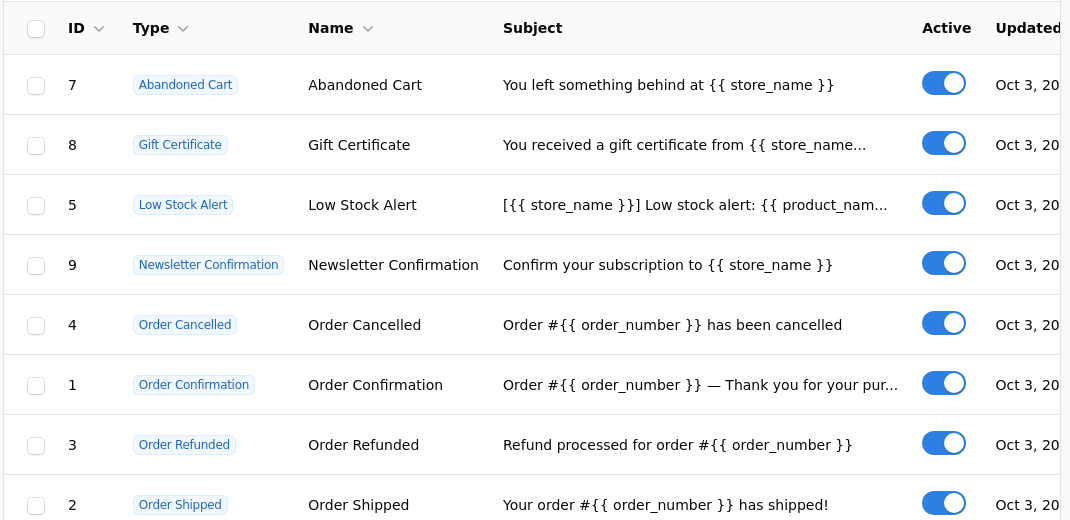
What Gets Sent
| Template | When |
|---|---|
| Order confirmation | An order is placed |
| Order shipped | Tracking is added |
| Order refunded | A refund is issued |
| Order cancelled | An order is cancelled |
| Welcome customer | An account is created |
| Abandoned cart | A basket is left, at 1, 24 and 72 hours |
| Gift certificate | A certificate is issued |
| Newsletter confirmation | Somebody subscribes |
| Low stock alert | A product reaches its threshold, sent to you |
Which of these actually send is controlled under Settings, Notifications, where each has its own switch.
What You Can Change
Subject is the line in the inbox. Heading is the large text at the top of the mail. Intro text sits above the detail, and footer text below it.
The detail in the middle, the order lines, totals and addresses, is assembled by the shop and is not editable as text, which is what stops a customer receiving an email with the wrong total in it.
Primary colour and body text colour let the mail match your shop.
Placeholders
The curly braces are placeholders, filled in when the mail is sent: {{ order_number }}, {{ store_name }}, {{ customer_name }}, {{ product_name }}.
Type one that does not exist and it is left as written, so the customer sees the braces. Copy the ones already in a template rather than guessing at names.
The HTML Body, and the Trap in It
Edit HTML replaces the whole body with your own markup, for a shop that wants complete control.
Clearing the HTML body can blank the email
Emptying that field does not revert to the standard layout. It leaves an empty body, and the customer receives a mail with a heading and nothing else. If an email has gone out empty, this is the first thing to check.
To go back to the standard layout, clear the field and save, then confirm by sending yourself a test. Do not assume.
Unless you have a reason, leave the HTML body alone and use the heading, intro and footer. They are enough for almost every shop and cannot break the layout.
Testing
Send yourself one of each before you open, and read them on a phone. Email templates look fine in the editor and reveal their problems in an actual inbox: an oversized logo, a colour that fails against a dark background, a footer with placeholder text still in it.
Order confirmation is the one to get right. It is the most read email your shop sends, and the one customers return to when they want to know what they ordered.
Where Mail Comes From
The name on the email and the address a reply goes to are set under Settings, General, Email Settings. Set a reply address that somebody reads, because customers reply to order confirmations regardless of what the email says. Who Your Email Comes From covers what a customer sees in the From line and why.
A missing reply address sends your customers nowhere
If replies go to an unmonitored address, you will never know what you are not being told. Set one that a person reads.
If Emails Are Not Arriving
Check in order: that the notification is switched on under Settings, that the template is active, that the customer's address is right, and then your email settings.
The commonest cause by far is the shop's sending address not being properly configured for the domain, which makes mail look like forgery to the receiving server and get filed as spam without any bounce.