
Homepage Builder
Building the homepage from blocks: what is on offer, reordering, hiding, duplicating, and what happens to your arrangement when you change theme.
Settings, Appearance, Homepage Builder. The homepage is not a page you write. It is assembled from blocks, each one a band across the page with its own settings, and you decide which appear and in what order.
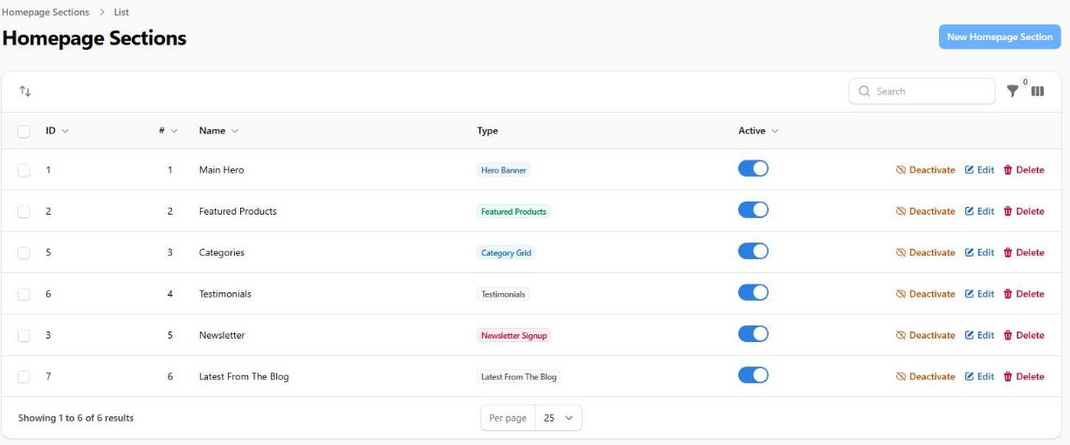
The Blocks Come From Your Theme
Every theme brings its own, and you are only ever offered what the active theme can draw. The default theme offers a hero, featured products, a category grid, a text block, testimonials, a row of blog articles and a newsletter signup. A theme built for you may offer something else under different names.
That is why there is no master list in this guide. Open the builder and what you see is what your theme has.
When you activate a theme it lays out its own blocks in the order its designer intended. You rearrange from there.
What You Can Do to a Block
Reorder. Drag it. The order on this screen is the order down the page.
Switch it off. A block that is off stays in the list with its settings intact, so you can put a seasonal band away and bring it back in November without rebuilding it.
Duplicate. Useful where the same kind of block says two different things: two featured rows, one for new arrivals and one for what is selling.
Edit its settings. Every block has its own: a heading, a subheading, how many items, which items, a background.
Delete. Only worth it when you are sure. Switching off keeps the work.
Blocks That Hide Themselves
Some blocks draw nothing until you have something to put in them. The blog row does not appear until you have published an article; featured products, the category grid and testimonials do the same.
That is deliberate. An empty band with a heading and nothing under it looks broken to a shopper, where an absent band looks like a decision.
So if a block is switched on and you cannot find it on the homepage, the usual answer is that the shop has nothing for it to show yet.
Think About the Order
The first two bands are what nearly everyone sees. Everything below them is seen by a minority, and the last band is seen by almost nobody who has not already decided to buy.
A hero that says what you sell, then the products themselves, is a better opening than a hero followed by an essay.
Changing Theme
Switch themes and the new theme's blocks appear in its own arrangement. Blocks belonging to the theme you left are not shown, because the new theme has no way to draw them. Switch back and your earlier arrangement is where you left it.
Activating a theme only fills in blocks you do not already have, so a homepage you have arranged is kept rather than replaced.
Putting it back
Reset to Theme Defaults on the Theme Settings screen can put the homepage back to the way the theme ships, without touching your pages or your settings. It is the way out of an arrangement that has got away from you.
The Homepage and the Page Builder
They are the same idea on two screens, and the difference is worth knowing.
The Homepage Builder builds one page, the front page, and lives under Appearance because it belongs to the theme.
The Page Builder builds any other content page and lives on that page's own edit screen, next to its title and its address.
The blocks and the sections come from the same place, your theme, but a theme may offer a block only for the homepage, only for a page, or for both. A hero band usually makes sense only at the front; a text section makes sense anywhere.