
Orders
The two statuses, every action on an order, what emails the customer, and how to find one.
Sales, Orders. Every order that has been placed, whether or not it has been paid for.
Two Statuses, Not One
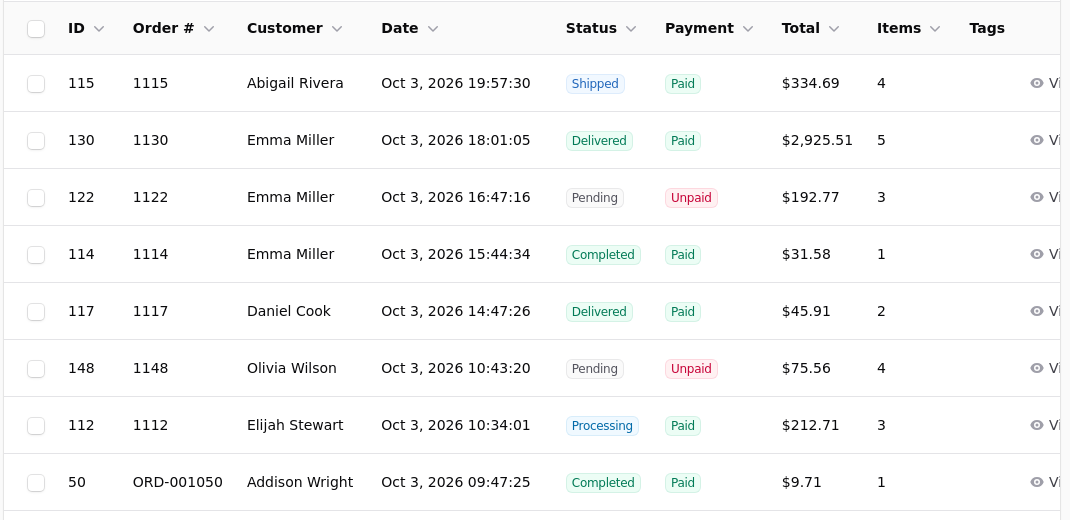
Every order carries two separate states. Conflating them is the usual source of confusion in a shop.
Order status is how far along it is.
| Status | Means |
|---|---|
| Pending | Placed, nothing done yet |
| Processing | Being picked and packed |
| Shipped | Gone, tracking recorded |
| Delivered | Carrier says it arrived |
| Completed | Finished, nothing outstanding |
| Cancelled | Will not be fulfilled |
Payment status is whether you have the money: unpaid, paid, partly refunded, refunded, failed.
They move independently
A cheque order is routinely processing and unpaid at the same time, and a card order can be paid while still pending. Reports count money by the payment status, so an order you have shipped but not been paid for does not reach your revenue until somebody marks it paid.
You can add your own statuses under Settings if your process has a step the standard ones do not describe.
What You Can Do to an Order
Open one and the actions sit along the top.

Update status moves it along. Update payment status records money separately. Mark paid is the shortcut for the common case of an offline order whose cheque has cleared.
Add tracking records a carrier and a tracking number, which is what tells the customer it is on its way. Generate label and Buy label create one through a connected carrier, and View labels reprints what you already bought.
Add note writes an internal note. Print invoice produces the document, and the same screen can print a batch of them for a day's picking.
Edit order changes what was ordered. Reassign fulfilment moves it to a different location or vendor. Cancel order stops it, and Refund returns money.
Refund here, not at the processor
Refunding in Stripe or PayPal directly leaves the shop believing it still has the money. Every report stays wrong until somebody notices, and the customer's order still reads as paid.
What Emails the Customer
Changing the order status can email them, depending on which notifications are switched on under Settings, Notifications. Adding tracking emails them. Changing the payment status emails nobody: it is a bookkeeping entry.
If you want to tell the customer something the statuses do not cover, send it yourself rather than nudging a status to trigger a mail.
Notes
Two kinds sit on an order and are easy to confuse. The customer note is what the shopper typed at checkout. Order notes are yours, written by you and your colleagues. Both appear in the Notes panel on the order.
Finding an Order
The search box matches order number, customer name and email address. The number works with or without the UC- prefix, so the number printed on a shipping label will find it.
Filters narrow by status, payment status, date and tags. Order tags are your own labels, and they earn their place on the handful of orders in an unusual state: waiting on a part, held for a customer, queried with the carrier. Tag it rather than remembering it.
If a customer cannot find their order, ask for the email address they used rather than the one they are writing from. Orders attach by email, and the two are often different.
What Is Recorded on an Order
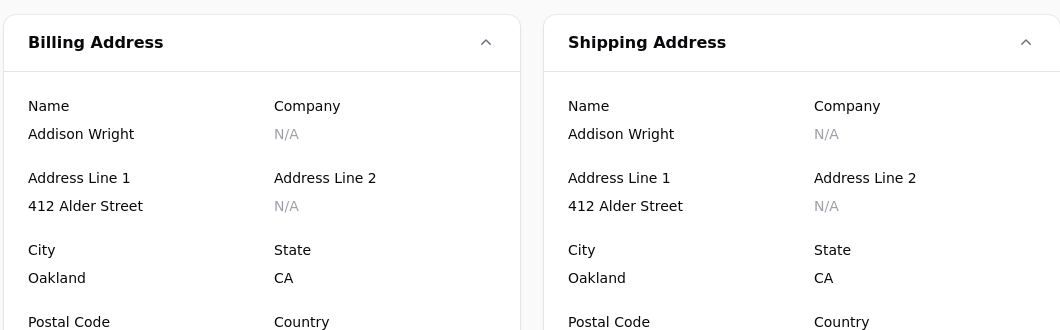
Everything about an order is a snapshot taken when it was placed. The product name, the price, the SKU, the options chosen, the delivery address and the tax.
Changing a product does not change past orders
Put the price up and old orders still show what was paid. Rename a product and old orders still show what it was called. That is deliberate: an order is a record of a transaction, not a live view of your catalogue. It is also why fixing a product does not fix an order that already went out wrong.
Editing an Order
Edit order changes what was ordered: quantities, lines, prices. The order total is recalculated.
What it does not do is move money. If an edit changes the total, you still have to refund or charge the difference, and the shop will not do it silently on your behalf.
Cancelling and Refunding
Cancel order marks it as not going to be fulfilled. It does not return money by itself.
Refund returns money through the processor that took it. A partial refund leaves the order partly refunded, which still counts towards revenue for the part you kept.
Refund here, not at the processor
Refunding in Stripe or PayPal directly leaves the shop believing it still has the money. The order still reads as paid, your revenue is overstated, and your tax report is wrong, until somebody notices.
Stock is not automatically returned to the shelf by a refund, because a refunded item is not always a returned one. Adjust stock yourself when the goods actually come back.
Invoices and Packing
Print invoice produces the document for a single order. The order list can print a batch of them, which is how a day's picking gets done in one pass.
The printed document carries the item count at the foot of the list, which is what the packer checks the parcel against, and names any pre-order line so nobody is surprised by a short parcel.
Taking an Order Yourself
Sales, Create Order places one on a customer's behalf, for a phone or trade order.
It behaves exactly like a shopper's order afterwards: it takes stock, it appears in reports, it can be paid by any enabled method, and it sends the same emails. Choose an offline payment method if you are going to invoice for it.
Exporting
Orders can be exported for a date range, which is the practical route into a bookkeeping package or a warehouse that wants a file. The export carries what was actually sold, line by line, rather than a summary.